How to Add A+ Content to Amazon
A step-by-step guide to adding A+ Content to your KDP book listings. Learn the process, understand the guidelines, and avoid common rejection reasons.
A+ Content is an important sales tool for KDP authors. It looks professional, builds your brand, and helps sell more books.
According to Amazon's own data, adding A+ Content can boost your conversion rate by up to 20%. That's 20% more book sales from the same traffic just by maximizing the space Amazon gives you to make your pitch.
Let's walk through exactly how to add it to your book listings.
What is A+ Content?
A+ Content is enhanced product page content that appears in the "From the Publisher" section on your Amazon listing. It includes banner images, comparison charts, and text modules that let you showcase your book beyond the standard cover and description.
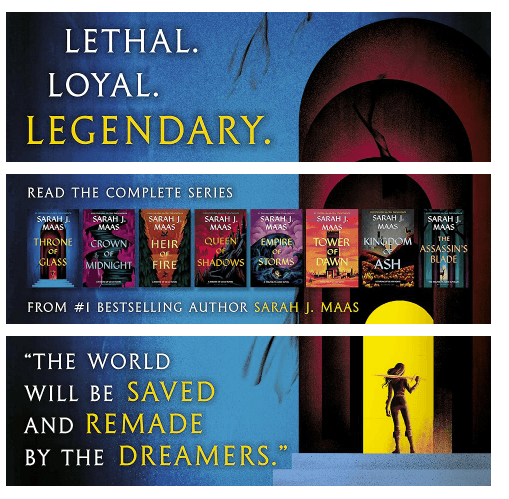
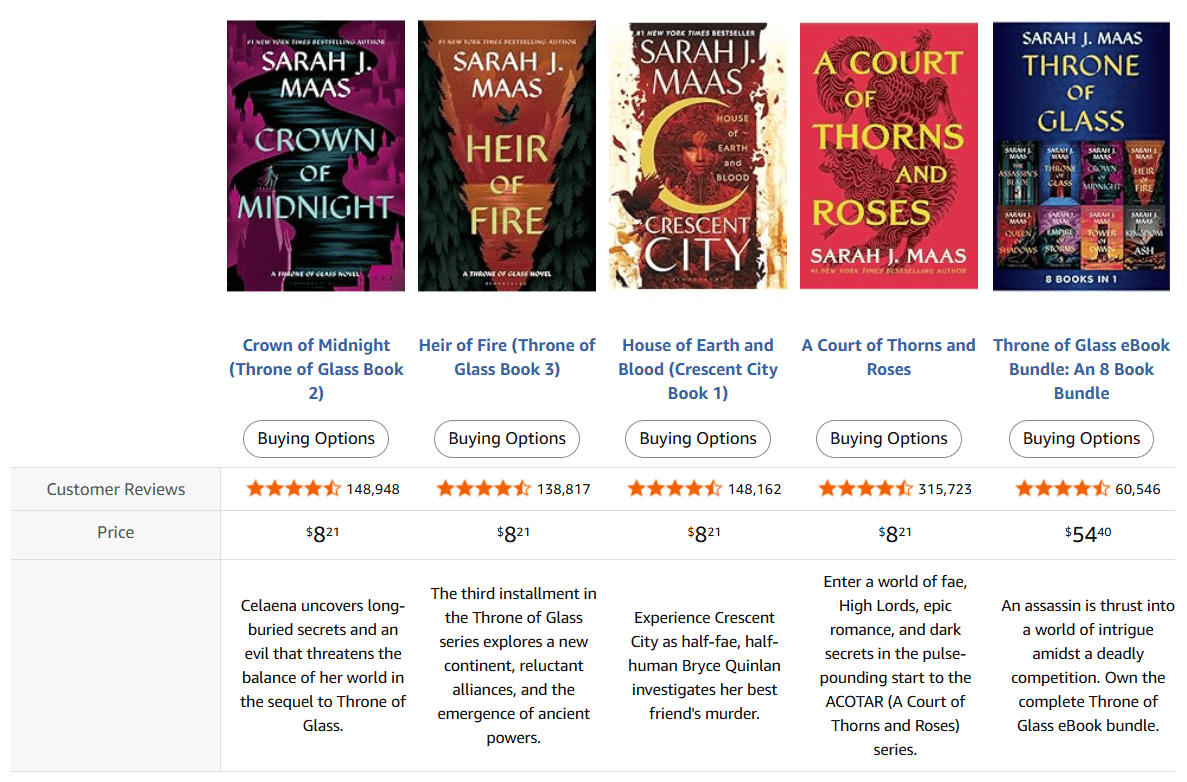
There are three types: Basic A+, Premium A+, and Brand Story. Most KDP authors use Basic A+ with banner images and comparison charts. For a complete overview of all the options, read our guide on what is Amazon A+ Content.
Step-by-Step: Adding A+ Content to Your Books
Here's the process for adding A+ Content to your KDP listings:
Step 1: Access the A+ Content Manager
Log into your KDP account and navigate to the Marketing section.

You'll find the A+ Content Manager there. Click "Start creating A+ Content" to begin a new project.
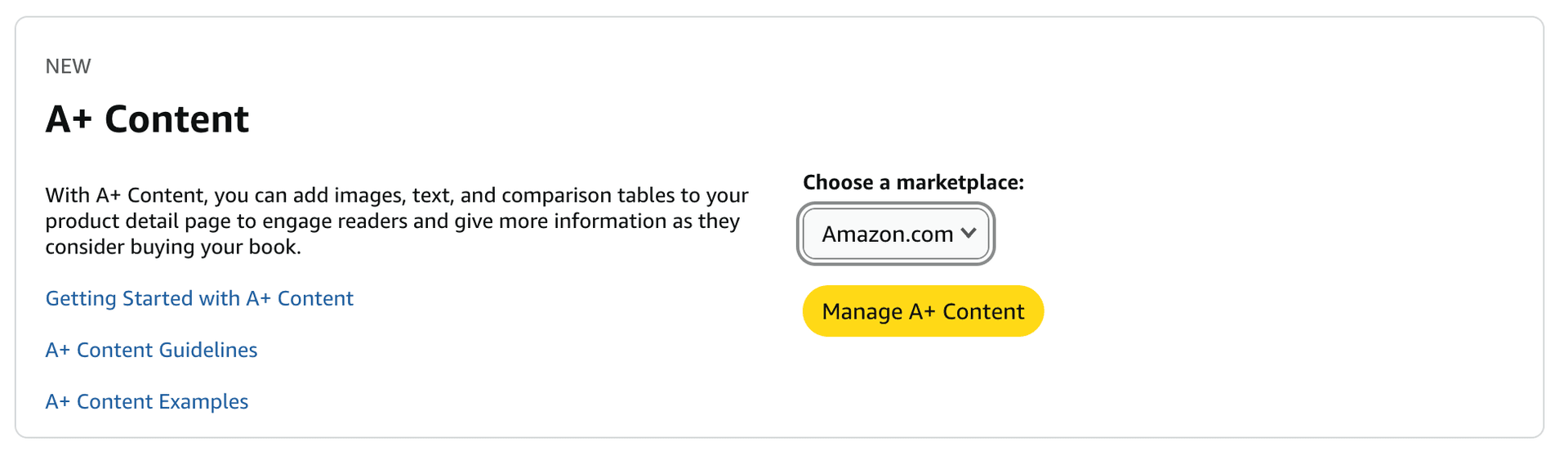
Step 2: Create a New Content Project
Give your project a name (this is internal—readers won't see it) and add any text for the headline (optional).
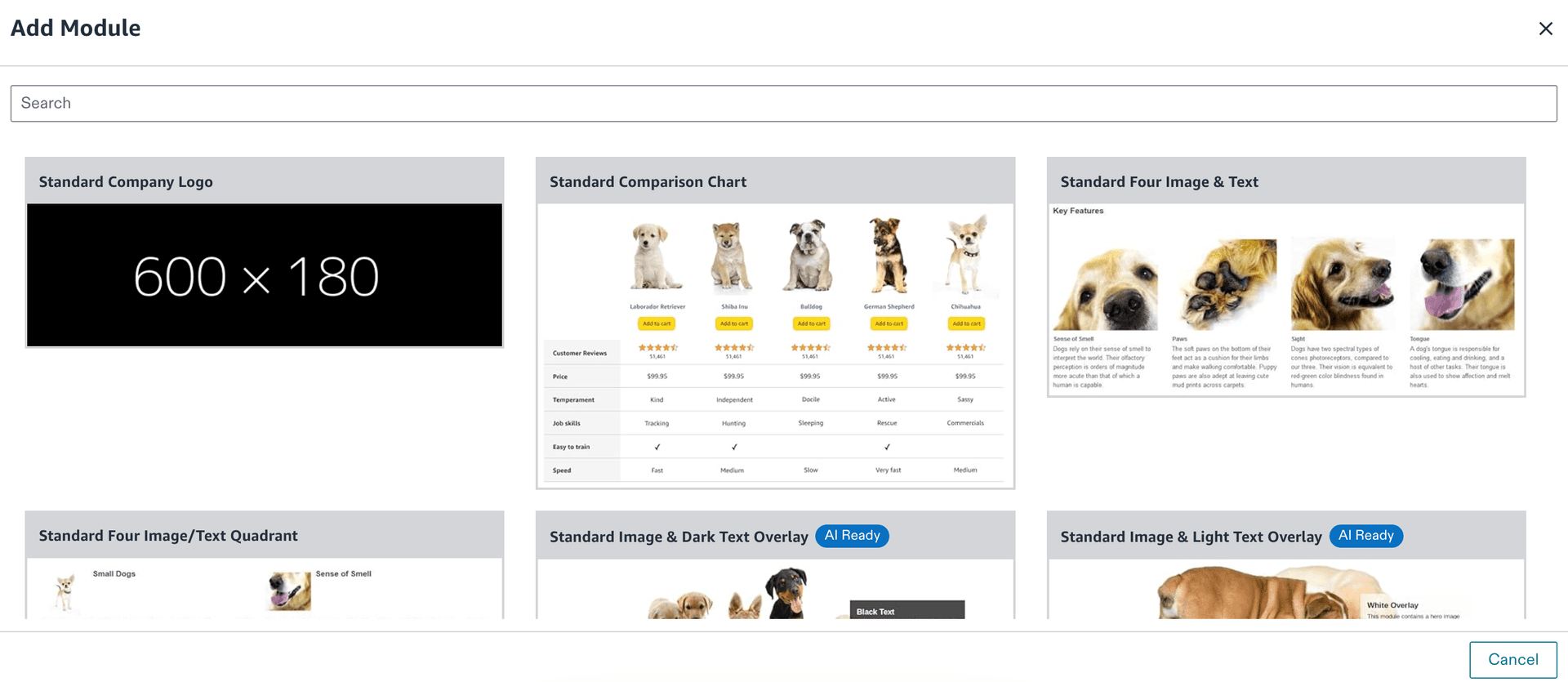
Choose which modules you want to include. The most popular options are:
- Standard Image & Text Overlay - The classic banner image
- Standard Comparison Chart - Great for series books
- Standard Three Image & Text - Multiple images in a grid
Step 3: Add Your Content
Upload your images and add any text. Each module has specific dimension requirements so make sure your images match these exactly, or they may appear stretched or cropped.
Step 4: Apply to Your ASINs
You can apply the same A+ Content project to multiple book ASINs. This is useful if you want consistent branding across a series or your entire catalog. You can apply A+ Content to different format detail pages (ebook, paperback, hardcover) of the same title.
Step 5: Submit for Review
Once you're happy with your content, submit it for Amazon's review. They'll check that it meets their content guidelines.
Review Timeline
Amazon says A+ Content will appear on your detail page within eight business days if it complies with their guidelines. If changes are needed, they'll send you an email with instructions.
I've found that most content is approved within minutes, and showing on the page within 24 hours
Important Note: Mobile vs. Desktop
Most readers are buying books on mobile devices. When choosing your design, keep in mind how different modules look across screen sizes.
The block image sizes (square images) will appear more prominently on mobile than landscape banner images. Why? There's not enough horizontal screen space to expand banner images, so they appear smaller relative to the screen. Square images scale better on narrow mobile screens.
If mobile optimization is a priority (and it should be), consider including at least some square or vertical images alongside your banners.
Amazon's A+ Content Guidelines
Amazon has strict guidelines for A+ Content. Violating them will get your content rejected and repeated violations could cause bigger problems.
Here are the key guidelines you need to know:
Top Reasons for A+ Content Rejection
Pricing or Promotional Details
Do not include pricing, discounts, or promotional language. Avoid words like "affordable," "bonus," "free," or calls to action like "buy now," "add to cart," or "shop with us."
Customer Reviews
You cannot include customer reviews in A+ Content.
Time-Sensitive Information
Don't mention anything time-sensitive: "now," "new," "latest," "on sale now," "the best yet," or holiday references. This includes references to Kindle Unlimited availability.
Publication Quotes
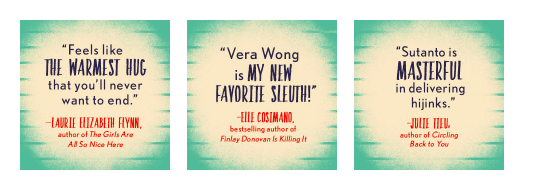
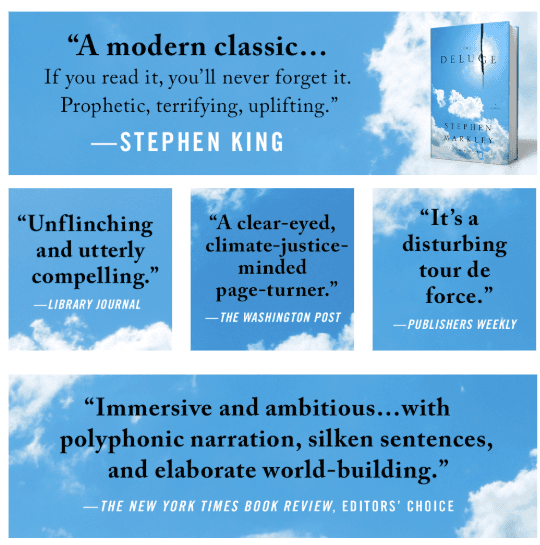
A maximum of four quotes or endorsements is allowed. These should only be from well-known publications or public figures, and must include the source and publication title.
Additional Guidelines Worth Noting
Unique Images Required
Images and text must be unique to your A+ Content. Avoid reusing the same images from your main product image gallery. A+ Content is meant to showcase unique aspects of your product.
Grammar and Formatting Standards
Spell out numbers under ten. Use consistent punctuation and Oxford commas. Capitalize each major word in headers. Grammatical errors, misspellings, all-caps text, or abusing bold/italic formatting can result in rejection.
No External Links
Web links or language attempting to redirect to sites outside Amazon are prohibited. This includes your author website, newsletter signup, or social media. Don't try to sneak in a link to your mailing list.
No Generic Accolades
Generic claims like "#1 best selling" are technically not allowed. You're supposed to only use officially designated accolades like "USA Today Bestselling Author" or "New York Times Bestselling Author."
A Note on Guideline Enforcement
When I analyzed bestselling authors' A+ Content, I saw many violations of these guidelines, particularly around accolades. Authors frequently use phrases like "Amazon Bestselling" even though there's no official Amazon designation for this.
I don't encourage breaking the guidelines. Amazon says violations could get your ASIN banned. But realistically, the more likely outcome is your content gets rejected and you have to revise it. There does seem to be some flexibility in enforcement, especially for established authors.
That said, why risk it? Play it safe, follow the guidelines, and save yourself the headache.
Frequently Asked Questions
Which books can I add A+ Content to?
A+ Content is available for published KDP books. You can create one A+ Content project and apply it to multiple ASINs. This is useful for adding the same branding across different formats of the same book.
Can I add A+ Content before my book is published?
No. You can only add A+ Content to live titles and pre-orders. The book needs to exist on Amazon first.
Which Amazon marketplaces support A+ Content?
You need to create and publish A+ Content separately for each marketplace. From kdp.amazon.com, you can publish to: Amazon.com, Amazon.ca, Amazon.co.uk, Amazon.de, Amazon.fr, Amazon.es, Amazon.it, Amazon.nl, Amazon.com.au, Amazon.com.br, Amazon.com.mx, and Amazon.in.
After you publish A+ Content in one marketplace, Amazon may automatically copy a draft to other marketplaces where your book is available and that support your content's language. Readers will see A+ Content based on their language preferences.
Can I include customer reviews?
No. Quotes from individuals, customers, or private figures are not allowed. Only quotes from well-known publications or public figures are permitted, with a maximum of four per project.
How do I include multiple images?
Use the Standard Image & Text Overlay module (the text overlay is optional, so you can use it for full-size images only). You can also use the multiple image modules for a series of smaller images. Check Amazon's module examples for different layout options.
How long until my A+ Content appears?
All compliant content should appear within eight business days. If your content needs changes, Amazon will email you with instructions.
Creating Your A+ Content
Before you can add A+ Content, you need to create it. The banner images are the most impactful part and they require some design work.
You have several options:
Design Tools (Canva, Photoshop, etc.)
Create your own images using standard design software. You'll need to know the correct dimensions and have some design skills.
AdSync's Free A+ Design Tool
We built a tool specifically for KDP authors to create A+ banner images. It includes:
- Preset templates based on bestseller designs
- Correct dimensions already set up
- Easy customization for fonts, colors, and images
- Format previews showing how your content will look on Amazon
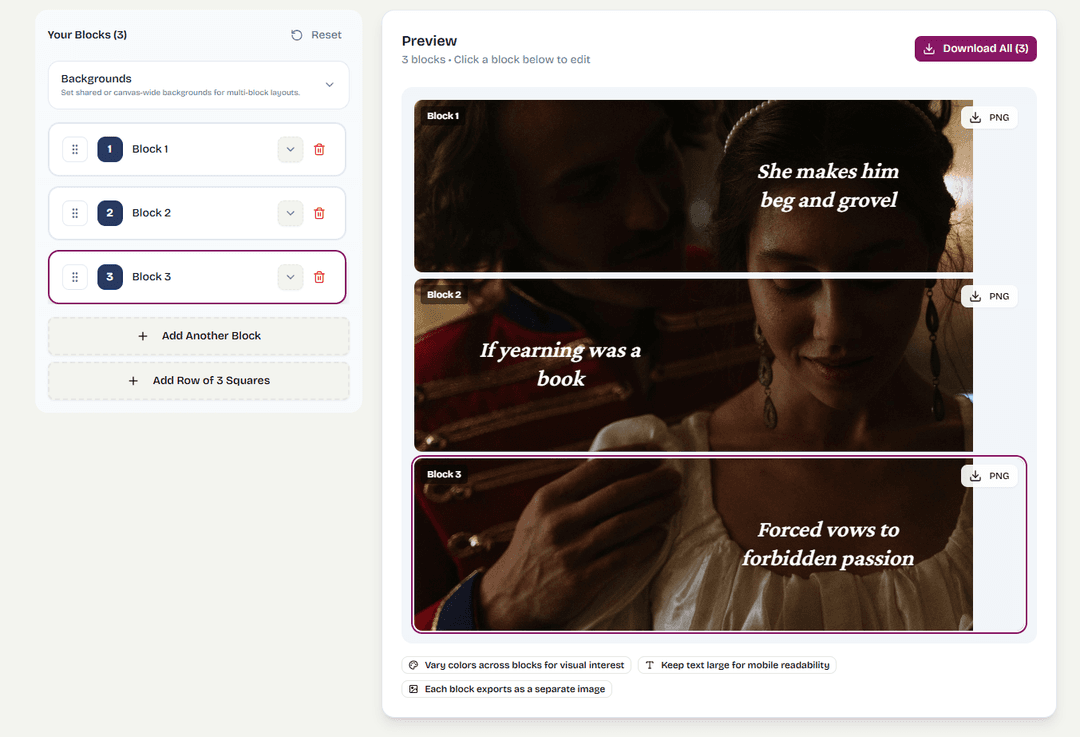
The tool is designed to help you build professional-quality A+ Content even if you have zero design experience.